
How to Post a Roadster AI Video on TikTok and Reels
Post a Roadster AI video on TikTok and Reels: generate in 9:16, pick 5, 10 or 15 seconds, hook viewers in the first second, add AI labels and choose the sound.
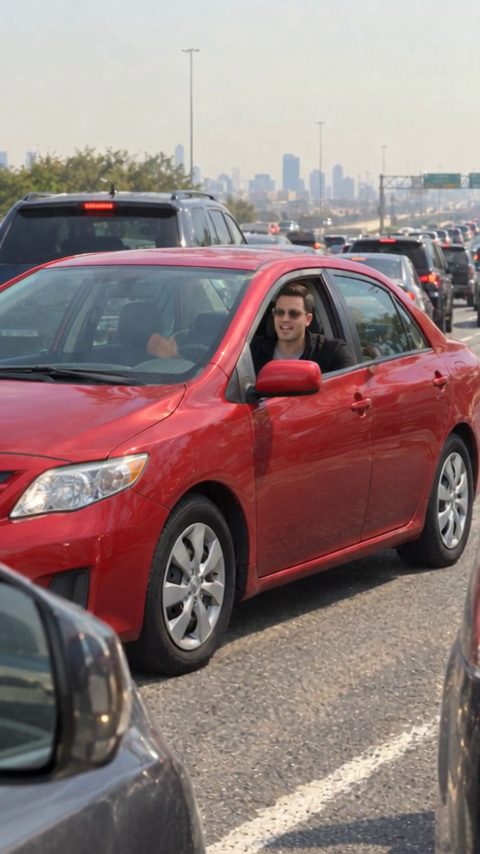
To post a Roadster AI video on TikTok or Instagram Reels, generate it in vertical 9:16, keep it to 5 or 10 seconds unless the story needs 15, and make sure something happens in the first second. Then mark it as AI-generated, with the platform's AI label and in your caption, and never present it as real news or an official Tesla ad.
The steps below assume you have already made a clip. If not, start with how to make a Tesla Roadster AI video from one photo. Roadster AI Video is an independent project and is not affiliated with or endorsed by Tesla or SpaceX.
Choose vertical video for TikTok and Reels
The studio generates either vertical 9:16 or landscape 16:9. For TikTok, Reels and YouTube Shorts, pick 9:16. It fills the phone screen, and the car stays large enough to see what it is doing.
A 16:9 video on TikTok plays as a narrow strip with empty space above and below. Keep landscape for YouTube, a website or a presentation.
Choose the format before you generate. Cropping a landscape clip into a vertical one cuts away most of the frame, and the car can leave the shot mid-action. If you want both formats, generate the scene twice.
The app's buttons sit along the right edge and the caption covers the bottom of the screen. When you write or edit the prompt, ask for the car to stay in the center of the frame so nothing important ends up under them.
Pick 5, 10 or 15 seconds
Match the length to the joke, not to the maximum.
| Length | Best for | 768P | 2K |
|---|---|---|---|
| 5 seconds | One action: a lift-off, a landing, a hover | 15 credits | 25 credits |
| 10 seconds | Setup and payoff: stuck in traffic, then liftoff | 30 credits | 45 credits |
| 15 seconds | Three beats: walk up, get in, fly off | 40 credits | 65 credits |
A short clip that ends right after the payoff usually works better than a longer one that drifts. Start with 10 seconds for most traffic scenes. Use 15 when the scene has a build-up, like the roadblock flyover or the pull-up.
For quality, 768P is usually enough for a phone feed. Choose 2K if you plan to crop, edit heavily or show the clip on a large screen.
Hook viewers in the first second
People decide fast whether to keep watching, so the first second has to show the car doing something.
- Put the action early. Write it into the prompt: "In the first second, blue jets ignite under the car." Avoid long establishing shots of empty roads.
- Trim dead frames. Use the TikTok or Instagram editor to cut any slow start.
- Add a text hook in the app. Our prompts ask for clean footage with no text, so you add the words yourself where you control them. Short lines work: "Traffic again" or "Finally found the button."
- Pick a cover frame that shows the car. Both apps let you choose the cover. A frame with the car mid-lift is clearer than a dark first frame.
Label your Roadster AI video as AI-generated
Do this for every clip, even one that looks obviously fake. Reposts strip context, and a clip that is clearly a joke on your profile can look real in someone else's feed.
Use the platform's AI label. TikTok's post settings include an option to mark content as AI-generated, and Instagram offers an AI label when you share a Reel. Menu names change, so check the more options or advanced settings screen before you post.
Say it in the caption too. For example:
AI-generated, fictional scene. Not real footage and not a Tesla ad. Made from one photo of my car.
Hashtags like #AIvideo or #AIgenerated help. Avoid tags that suggest news or leaks, such as #breaking.
If the photo shows another person, get their agreement before you post.
Choose the sound
The model generates its own audio for each clip, so the MP4 already has sound. Listen to the whole clip before you post, because generated audio can drift from the action.
To use a trending sound instead, add it inside the TikTok or Instagram app and turn the original audio down or off. Using the app's own sound library is safer than adding a song in another editor before you upload, which can get the clip's audio flagged. A mix often works best: the trending sound under the generated audio, so the takeoff moment is still audible.
What not to post
- Don't present it as real news. No "leaked test footage" or "spotted on the highway" captions.
- Don't make it look like an official Tesla ad. Don't add Tesla logos or wording that suggests Tesla made or approved it.
- Don't caption it with real performance claims as proof. Putting Tesla's announced 0-60 times over a fictional stunt implies the clip shows them.
- Don't splice it with real reveal footage unless every AI part is clearly labeled.
- Don't use other people's faces without permission, and avoid the likeness of public figures.
For more on how real reveal footage and AI clips differ, read Is the Tesla Roadster flying video real?
A quick posting checklist
- Generated in 9:16 at the length the joke needs.
- Action in the first second, dead frames trimmed.
- AI label switched on in the app.
- Caption says AI-generated and fictional.
- Sound checked: the generated audio, an app sound, or both.
- Cover frame shows the car.
- Nothing that suggests real news or an official Tesla ad.
FAQ
Can I post a 16:9 Roadster AI video on TikTok?
Yes, but it plays smaller, with empty space above and below. Generate in 9:16 for the feed.
Does the video have a watermark?
The site adds no watermark. That makes the AI label in the app and in your caption more important.
Can I post the same clip to YouTube Shorts?
Yes. A 9:16 clip works on Shorts. YouTube asks creators to disclose realistic altered or synthetic content when they upload, so use that setting too.
Where do I find a prompt that works well vertically?
Our 12 Roadster AI video prompts include traffic and comedy scenes that suit a phone screen. You can also browse the templates or go straight to the studio.