
How to Make a Tesla Roadster Pull-Up AI Video Starring You
Make a Tesla Roadster pull up AI video: walk up in a suit, get in and lift off on thrusters. Upload one front-facing photo, adjust the prompt and generate.
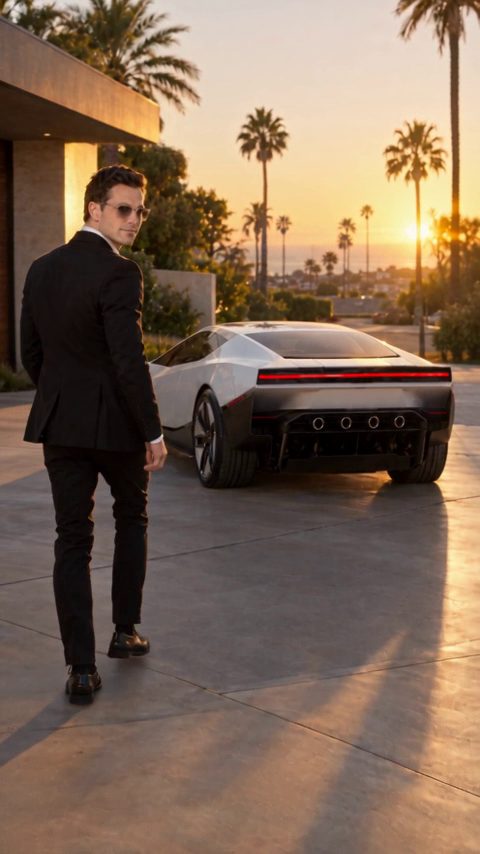
To make a Tesla Roadster pull up AI video, open the pull-up scene in the studio, upload one clear, front-facing photo of yourself and select Generate. The scene's prompt already covers the whole moment: you walk up to the car in a sharp suit, glance back, get in, and the car fires its thrusters and flies off.
You don't need to own a sports car or write anything. Roadster AI Video is an independent project and is not affiliated with Tesla or SpaceX.
What the Roadster pull-up video is
The pull-up is a short character moment that ends in liftoff. It is set in a quiet modern plaza at golden hour. You walk up to a parked sports car in a dark suit, glance back over your shoulder at the camera, open the door and get in. The camera holds a steady medium-wide shot as rocket thrusters ignite under the car with white vapor, and the car lifts straight up into the sky.
The first half plays like an ordinary clip of someone walking to their car, which is why the liftoff works as a reveal. The scene is fictional.
Step 1: Open the pull-up scene
Open the Roadster pull-up in the studio. The link preselects the scene and loads its prompt. To watch the example and read the prompt first, visit the Tesla Roadster pull-up template page.
You need an account with credits to generate.
Step 2: Upload a front-facing photo of yourself
The scene's photo tip: a clear, front-facing photo of you, and a photo of you next to the car works even better. You face away from the camera for most of the clip, so the glance back is when your face has to read, and a sharp, front-facing photo helps most there.
The prompt dresses you in a dark suit, so the outfit in your photo doesn't need to match.
Do:
- Face the camera with your whole face visible and in focus.
- Use daylight or even indoor light.
- Stand next to the car you want in the scene, with the whole car in frame, if you have one.
Don't:
- Hide your face behind a phone, a hand or a hat brim.
- Upload a group photo. A second person can blend into the result.
- Use heavy filters or beauty effects.
- Upload a photo of someone else without their agreement.
Step 3: Change the outfit, place or camera (optional)
Here is the scene prompt. You can generate with it as it is:
Use Image 1 as the visual reference for the person and the car. Create a fictional cinematic scene in a quiet modern plaza at golden hour. The person, in a sharp dark suit, walks up to the parked sports car, glances back over their shoulder at the camera, opens the door and gets in. The camera holds a steady medium-wide shot as rocket thrusters ignite under the car with white vapor, and the car lifts straight up and flies off into the sky. Keep the face, outfit and car consistent. Clean footage only: no added titles, subtitles, logos or watermarks.
Change one detail at a time. Concrete edits:
- Outfit. Change "in a sharp dark suit" to "in a white linen suit" or "in a black leather jacket".
- Place and time. Change "a quiet modern plaza at golden hour" to "a rooftop parking deck at night with city lights".
- Camera. Replace "The camera holds a steady medium-wide shot" with "The camera slowly pushes in". Keep it to one move.
- The car, if your photo shows only you. Change "the parked sports car" to "a parked silver two-door sports coupe" so the model knows what to draw.
For more starting points, see our Tesla Roadster AI video prompts.
Step 4: Choose vertical or landscape and generate
The example is 9:16. A tall frame suits a person walking to the car and a straight vertical liftoff, and it fills a phone screen on TikTok, Reels and Shorts. Pick 16:9 if the video is for YouTube or a website. Choose before you generate, because cropping later cuts off most of the frame.
Then choose the length and format offered in the studio, check the credit cost it shows and select Generate. You can close the page while it runs; the finished video appears in History.
Step 5: Download and post
Download the MP4 from History. Label it as AI-generated when you post: use the platform's AI label if it has one and say so in the caption. Since the clip shows your face, only post it where you are comfortable being recognized. See our guide to posting a Roadster AI video on TikTok and Reels.
Tips to keep you and the car consistent
- One person, one car. Keep the photo to yourself, or yourself and one car. Extra people or vehicles in the frame can merge into the result.
- One action. The scene is walk, glance, get in, lift off. Don't add a flip or a chase after the liftoff; give those their own clip.
- One camera move. The prompt asks for a steady shot. If you change it, use a single simple move like a slow push-in, and avoid a camera that circles you or the car.
- Avoid fast spins. Quick rotations are where faces and car shapes drift; a straight vertical liftoff is steadiest.
- Simplify before you regenerate. Results vary between generations. If your face changes, try a sharper, more front-facing photo before you rewrite the prompt.
FAQ
Do I need to write a prompt?
No. The pull-up scene comes with a ready-made prompt. Upload your photo and generate; editing is optional.
Can I use my own car?
Yes. Upload a photo of yourself standing next to your car, truck or van, with the whole vehicle in frame. Any vehicle works.
How much does it cost?
One-time credit packs start at $4.99 for 40 credits, no subscription needed, and pack credits never expire. Monthly plans are also available. There are no free credits. The studio shows the cost before you generate, and if a generation fails, the credits return to your balance automatically. See pricing, or find more scenes with you in them on the templates page.