
How to Make a Day 1 of Owning a Roadster AI Video
Make a Day 1 of owning a Roadster AI video from one photo of you: open the scene, upload a front-facing photo, tweak the prompt if you like and generate.
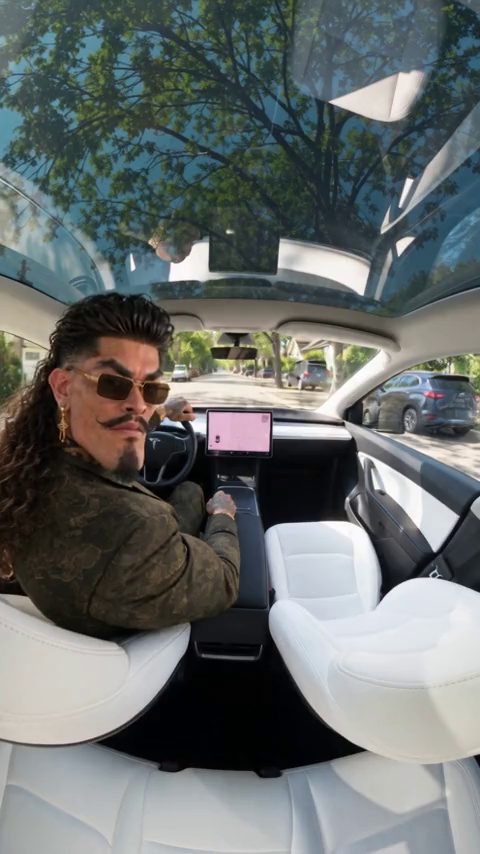
To make a Day 1 of owning a Roadster AI video, open the Day 1 scene in the studio, upload one clear, front-facing photo of yourself and select Generate. The scene already supplies the car and a written prompt, so you don't need a car photo or any prompt experience.
Roadster AI Video is an independent project and is not affiliated with Tesla or SpaceX.
What the Day 1 of owning a Roadster video is
"Day 1 of owning a..." is a short-video story format: the clip pretends to show the first day with something new, and it escalates fast. You glance back at the camera from the driver seat, the car sits in bumper-to-bumper traffic, and then it lifts off out of the jam, climbs through bright clouds alongside other flying cars and lands gently on the moon with Earth in the sky.
It is fiction, and because the scene supplies the car, it only needs a photo of you. More story scenes are on the templates page.
Step 1: Open the Day 1 scene
Open Day 1 of Owning a Roadster in the studio. The link preselects the scene and loads its prompt. To watch the example and read the prompt first, visit the Day 1 template page.
You need an account with credits to generate.
Step 2: Upload a clear photo of yourself
The scene's photo tip: a clear, front-facing photo of you in good light. Your face has to carry through every beat, so this photo matters more than any prompt edit.
Do:
- Face the camera, with your whole face visible and in focus.
- Use daylight or even indoor light.
- Include your upper body if you want your outfit to carry into the clip.
Don't:
- Cover part of your face with a hand, a mask or a hat brim.
- Upload a group photo. A second face can blend into yours.
- Use heavy filters or beauty effects.
- Upload a photo of someone else without their agreement.
Step 3: Adjust the prompt (optional)
The scene comes with this prompt, and you can generate with it as it is:
Use Image 1 as the visual reference for the person. Create a fictional story about the first day with a new electric sports roadster. The person glances back at the camera from the driver seat, then the car sits in bumper-to-bumper traffic. The car lifts off out of the jam, climbs through bright clouds alongside other flying cars, and lands gently on the surface of the moon with Earth in the sky. Keep the face consistent. Clean footage only: no added titles, subtitles, logos or watermarks.
Change one detail at a time. Three edits that work well:
- Pick the car color. Change "a new electric sports roadster" to "a new matte red electric sports roadster".
- Move the traffic jam. Change "the car sits in bumper-to-bumper traffic" to "the car sits in bumper-to-bumper traffic on a rainy freeway at night".
- Change the ending. Replace "lands gently on the surface of the moon with Earth in the sky" with "lands gently on a quiet beach at sunset" for a calmer finish.
Keep the sentence "Keep the face consistent." in place. Our list of Tesla Roadster AI video prompts has more lines you can borrow.
Step 4: Choose vertical or landscape and generate
Pick 9:16 for TikTok, Instagram Reels and YouTube Shorts, or 16:9 for YouTube and websites. The example is vertical. Choose before you generate, because cropping later cuts off most of the frame.
Then choose the length and format offered in the studio. The prompt has four beats, so give each one room. Check the credit cost the studio shows and select Generate. You can close the page while it runs; the finished video appears in History.
Step 5: Download and post
Download the MP4 from History. When you post, label it as AI-generated: turn on the platform's AI label if it has one and say so in the caption. The opening in traffic looks like an ordinary car clip, so the label matters. See our guide to posting a Roadster AI video on TikTok and Reels.
Make the sequel: the Day 1 loop scene
If part 1 does well, there is a part 2. In the Day 1 loop scene, you sit bored in a rainy traffic jam, press one button next to a cup of coffee, and the thrusters throw the car into a full vertical loop over the traffic while the coffee floats out of the cup.
Open the loop scene in the studio and reuse the same photo, ideally one where you are seated, so both parts show the same face.
Tips to keep your face and the car consistent
- One person, one car. Keep yourself as the only person in the photo and don't add a second car; the flying cars in the clouds are already in the scene.
- One action per beat. Adding a flip or a crash to the four existing beats gives each one less time and makes the car more likely to warp.
- One camera move per shot. If you add one, keep it simple, such as "the camera follows from behind as the car climbs". Avoid fast spins and orbiting shots; quick rotations are where the car's shape and wheel count drift.
- Simplify before you regenerate. Results vary between generations. If the face drifts or the car warps, remove an effect before you change anything else.
FAQ
Do I need to write a prompt?
No. The Day 1 scene comes with a ready-made prompt. Upload your photo and generate; editing is optional.
Can I use my own car?
Yes. Upload a photo of yourself with your car, truck or van, and change the first sentence of the prompt to "Use Image 1 as the visual reference for the person and the car." Any vehicle works.
How much does it cost?
One-time credit packs start at $4.99 for 40 credits, no subscription needed, and pack credits never expire. Monthly plans are also available. There are no free credits. The studio shows the cost before you generate, and if a generation fails, the credits return to your balance automatically. See pricing, or open the Day 1 scene and add your photo.